 By Juraj · Last updated October 12, 2026
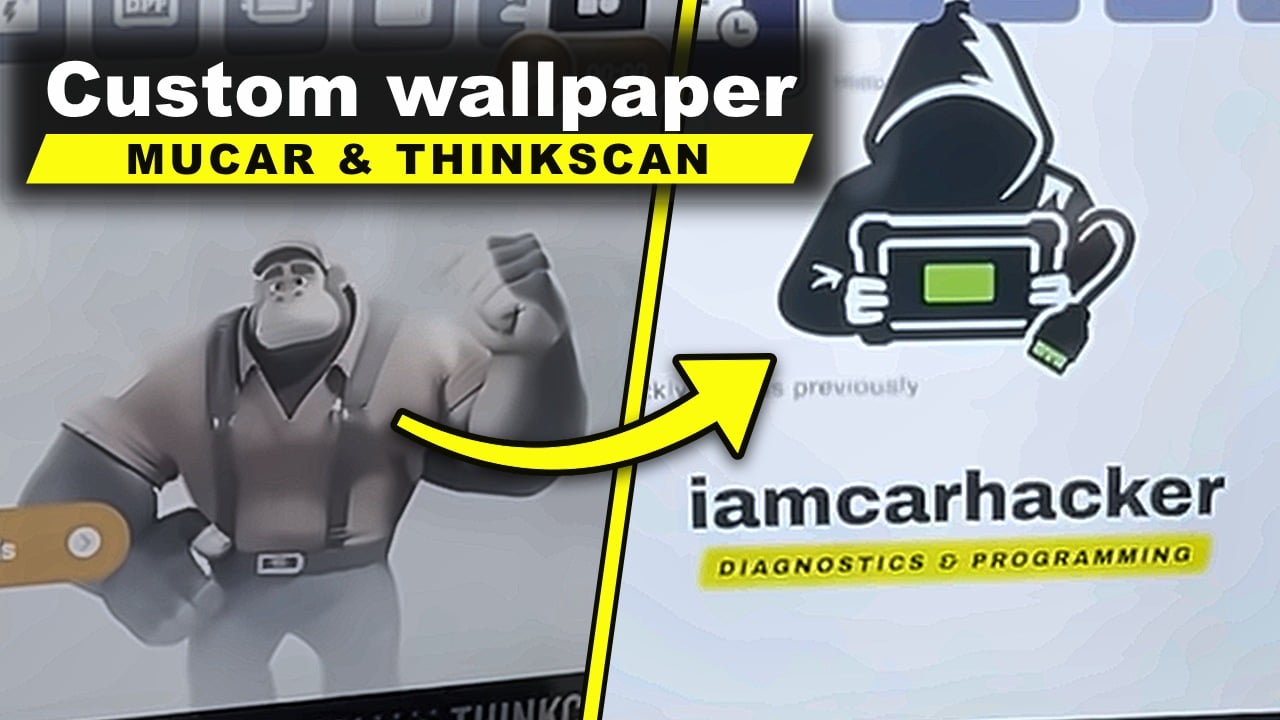
This guide shows how to set your own image or logo as the home screen wallpaper on the Thinkscan 689BT, Thinkscan 689BT Pro, Mucar 892BT and Mucar 892BT Pro.
I earn from qualifying purchases and sometimes get tools for free (full disclosure). It never affects my scoring.
Used tools in this guide

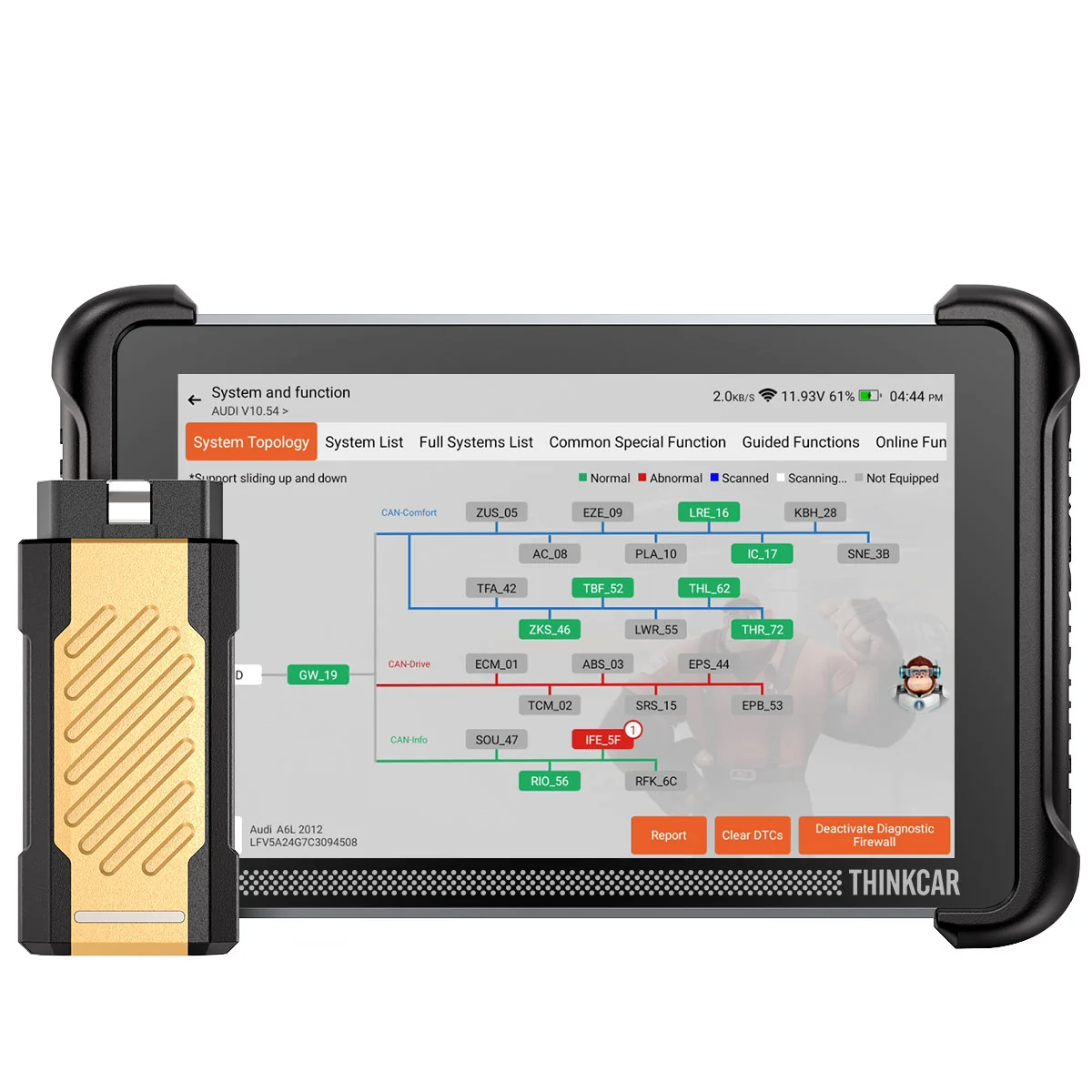

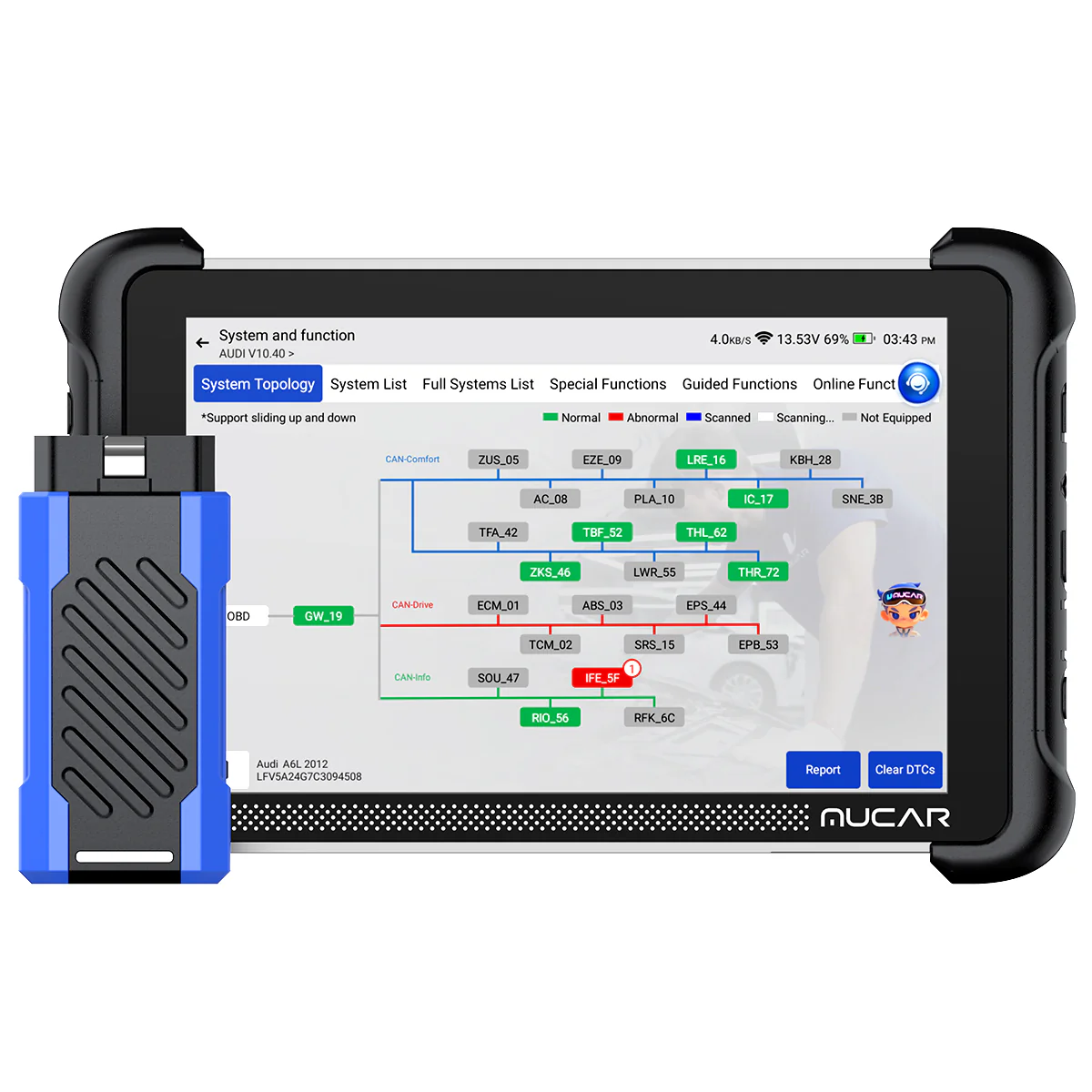
The same steps work on the Mucar 892BT, Mucar 892BT Pro and Thinkscan 689BT Pro.
Video: How to set a custom wallpaper on Thinkscan 689BT and Mucar 892BT
This video shows how to copy your own image to the tablet over USB and set it as the wallpaper.
Tool overview
| Tool | Thinkscan 689BT (same on Thinkscan 689BT Pro, Mucar 892BT, Mucar 892BT Pro) |
|---|---|
| Affected function | Home screen wallpaper |
| Fix type | Settings change and file copy over USB |
| Difficulty | Easy |
| Time required | ~3 minutes |
| Prerequisites | USB-C cable, a laptop, the image you want as wallpaper |
Step-by-step procedure
Connect the tablet to your laptop
Plug the USB-C end of the cable into the tablet and the USB end into the laptop.
Allow USB connection mode
On the tablet open Settings, go to Maintain and turn on Allow USB connection mode. Without it the tablet does not accept files from the laptop.
Copy your image into Pictures
Open the tablet storage on the laptop and paste your image into the Pictures folder. The wallpaper menu picks images up from there.
Open the wallpaper settings
On the tablet go to Settings, then Universal, then Wallpaper. Your image is now in the list.
Select your image
Pick the image and the custom wallpaper is set on the home screen.
Additional information & compatibility notes
Before using or purchasing any diagnostic tool for this procedure, always verify compatibility with your exact vehicle model, year and system configuration. Supported functions may vary depending on software version, hardware revision and regional limitations.
I did this on the Thinkscan 689BT. The same steps apply to the Thinkscan 689BT Pro, Mucar 892BT and Mucar 892BT Pro.
Legal & safety notice
More procedures like this
VW Passat B7 Disable Seatbelt Warning: Do It in Long Coding, Not Adaptation
Opel Vectra C 2.2 DTI Limp Mode Fix: Stuck T-MAP Sensor Found With Live Data
How to Disable Turn Signal Bulb-Out Warning on Škoda Rapid 2015 (NH)
Fiat Doblo 2015 1.6 MJT DPF service regeneration
How to Check Diesel Fuel Injectors (VW / Audi / Skoda / Seat) Using OBD2 Scanner
Steering Angle Sensor Calibration (SAS Reset) – Honda Civic 2017
Most popular OBD2 guides


I'm Juraj Lukacko and I work as an auto electrician. On this site I share what I learn from real work on real cars, to help you pick the right tools for diagnostics, programming and tuning and get the job done.
More about me →