 By Juraj · Last updated August 15, 2026
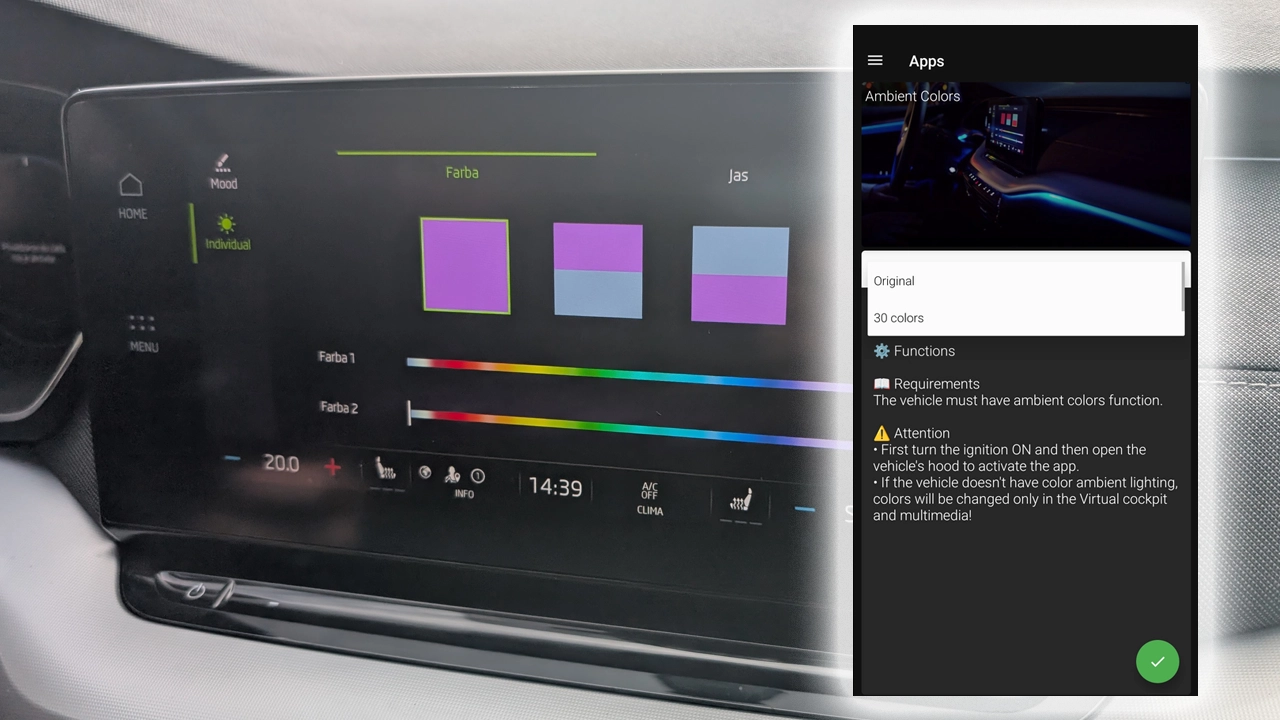
This guide shows how to unlock the full 30-color ambient lighting palette on a Skoda Octavia 4 (NX, 2020+). From the factory most cars only let you cycle through 10 colors in the MIB3 menu, even when the LED hardware itself supports the full 30. A few adaptation values in module 09 (Body Control Module / Centrale Electrique) flip that on.
I earn from qualifying purchases and sometimes get tools for free (full disclosure). It never affects my scoring.
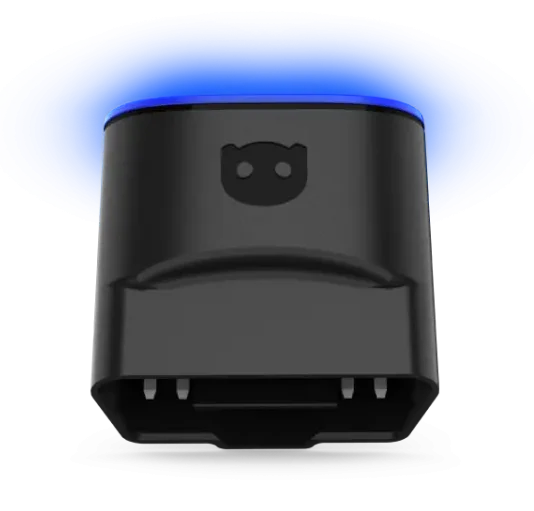
Used tool in this guide
Video: How to active 30 ambient colors
This video shows a simple OBDeleven walkthrough. Connect, automatic-unlock SFD, run the four adaptation changes, done. The 4 lines below are the same procedure done manually if you don't want to use a one-click app.
Supported vehicles
| Vehicle |
|---|
| octavia-mk4 |
Technical overview
| Vehicle | Skoda Octavia 4 |
|---|---|
| Year | 2020 |
| System | 09 – Body Control Module (central electronics) |
| Procedure type | Long adaptation (4 channels) |
| Difficulty | Medium |
| Time required | ~15 minutes |
| Prerequisites | OBDeleven Pro/Ultimate or VCDS, SFD unlock, ignition ON, ambient lighting hardware already fitted |
Step-by-step procedure
Connect OBDeleven or VCDS
Engine off, ignition off. Plug your OBDeleven dongle (or VCDS cable) into the OBD2 port under the dashboard on the driver's side.
Switch the ignition on
Switch the ignition on (you don't need to start the engine — but the engine running is fine too) and open the OBDeleven app or VCDS.
Select control module 09 – Cent. Elect.
Select control module 09 – Cent. Elect. (Body Control Module).
Unlock SFD protection
Unlock SFD protection for this module. In OBDeleven this is under the SFD menu and requires you to be logged into your account; in VCDS it's under "Security Access – 16" with the SFD flow.
Change the four channels
Open Adaptation – 10.
You now need to change four channels. The pattern is the same for each one: pick the channel from the top dropdown, pick the value from the bottom dropdown, validate.
Additional information & compatibility notes
Line 1 — main ambient color palette:
- Channel:
Interior_light_hmi_config – Hmi_ambient_colors_bitmask - Value:
7F FF FF FF FF
Line 2 — contour color palette:
- Channel:
Interior_light_hmi_config – Hmi_contour_colors_bitmask - Value:
7F FF FF FF FF
Line 3 — ambient colors for driving profiles (FOD):
- Channel:
Interior_light_hmi_config – Hmi_ambient_colors_fod_bitmask - Value:
3F FF FF FF FF
Line 4 — contour colors for driving profiles (FOD):
- Channel:
Interior_light_hmi_config – Hmi_contour_colors_fod_bitmask - Value:
3F FF FF FF FF
After all four are written, cycle the ignition off → wait 30 seconds → ignition on. Open the MIB3 settings → Ambient lighting. You should now see all 30 colors in the picker for both ambient and contour zones, plus per-driving-profile color options.
A few things specific to this procedure worth knowing:
- Hardware matters. If your Octavia was ordered without the ambient lighting package at all, the LED strips in the dashboard, doors and footwells aren't physically there — coding alone won't make them appear. This procedure unlocks the full palette on cars that already have the lighting hardware but came software-restricted to 10 colors.
- MIB version dependency. On older MIB units you may only see "Hmi_ambient_colors_bitmask" without the FOD variants — in that case run only Lines 1 and 2.
- Profile colors. If you want colors to follow your selected driving profile (Eco/Normal/Sport/Individual), the FOD lines (3 and 4) are what enables that.
- SFD unlock is per-session. Each time you reconnect, you need to unlock SFD again to write adaptations. Reading is fine without it.
Alternative tools
Legal & safety notice
More procedures like this
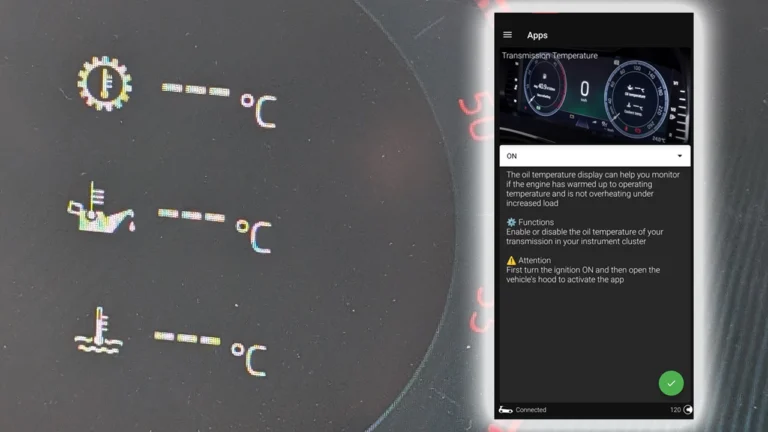
How to display gearbox, oil and coolant temperatures in the Virtual Cockpit on Skoda Octavia 4 (NX)
How to deactivate the seatbelt warning chime on Skoda Octavia 4 (NX)
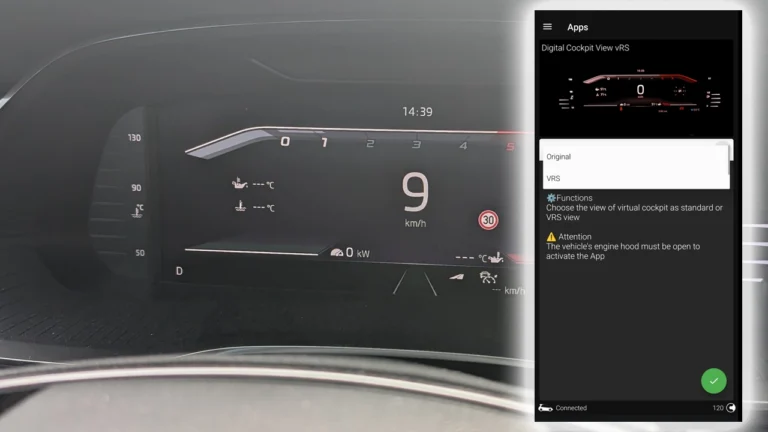
How to enable VRS sport display in the Virtual Cockpit on Skoda Octavia 4 (NX)
Activate Cornering Lights (Fog Lights) – Skoda Rapid 2019
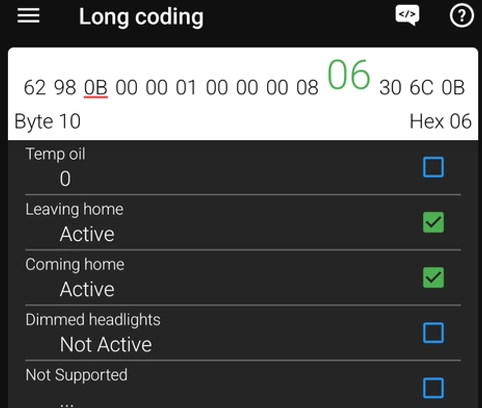
How to Enable Coming Home & Leaving Home Lights (VAG Coding Guide)
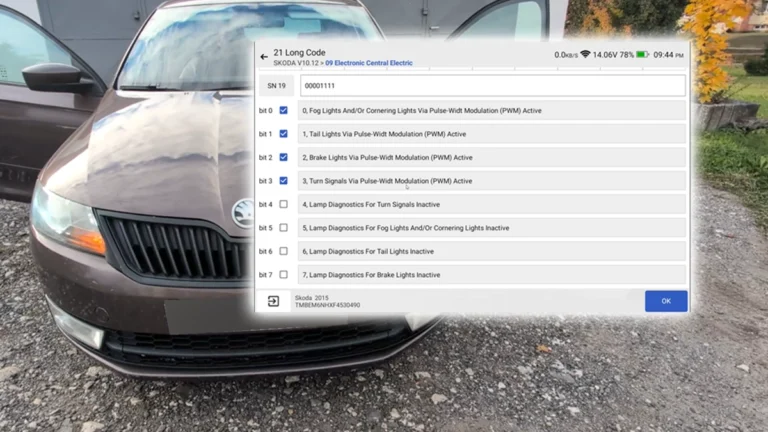
How to Disable Turn Signal Bulb-Out Warning on Škoda Rapid 2015 (NH)
Most popular OBD2 guides



I'm Juraj Lukacko and I work as an auto electrician. On this site I share what I learn from real work on real cars, to help you pick the right tools for diagnostics, programming and tuning and get the job done.
More about me →