 By Juraj · Last updated August 15, 2026
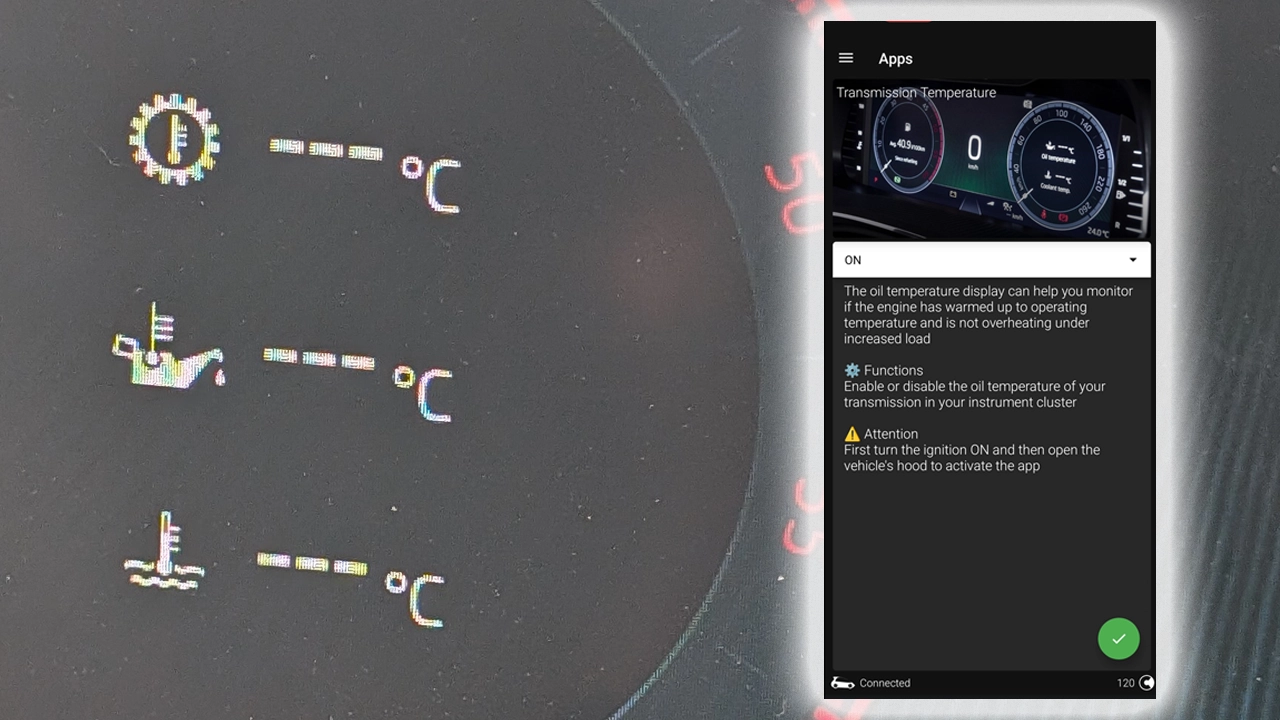
This guide shows how to unlock numeric temperature readouts in the digital cockpit (Active Info Display) on a Skoda Octavia 4 (NX, 2020+). Three values can be enabled the same way through module 17 (Instruments):
- Gearbox / transmission temperature — DSG fluid temperature, displayed in °C
- Engine oil temperature — actual oil temperature, not just the coolant
- Coolant temperature — exact value in °C, replacing the simple cold/normal/hot bar
After coding, you can show any of these on the second info layout in the cluster, viewed via the View button on the steering wheel.
I earn from qualifying purchases and sometimes get tools for free (full disclosure). It never affects my scoring.
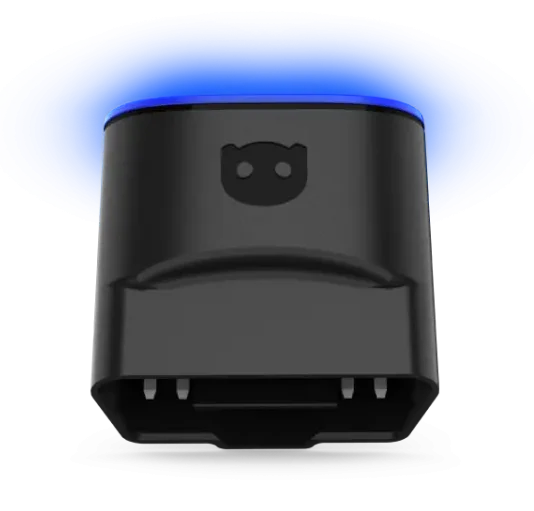
Used tool in this guide
Video: How to enable transmission, oil and coolant temperature display on Skoda Octavia 4 NX (OBDeleven one-click app)
The video walks through doing this with OBDeleven's one-click app for transmission temperature; the same pattern applies to the oil and coolant temperature apps. The 6 manual steps below are what's happening underneath if you'd rather do it through the adaptation menu in OBDeleven Pro or VCDS.
Supported vehicles
| Vehicle |
|---|
| octavia-mk4 |
Technical overview
| Vehicle | Skoda Octavia 4 |
|---|---|
| Year | 2020 |
| System | 17 – Instruments (digital cockpit / Virtual Cockpit) |
| Procedure type | Adaptation (one channel per temperature) |
| Difficulty | Easy |
| Time required | ~5 minutes |
| Prerequisites | OBDeleven Pro/Ultimate or VCDS, SFD unlock, ignition ON, |
Step-by-step procedure
Connect OBDeleven or VCDS
Engine off, ignition off. Plug your OBDeleven dongle (or VCDS cable) into the OBD2 port under the dashboard on the driver's side.
Switch the ignition on
Switch the ignition on. If you're using the OBDeleven one-click app, also open the engine hood — the app uses the hood-open signal as a safety confirmation before writing the change.
Select control module 17 – Instruments
Open Adaptation – 10
Select the temperature channel
From the top dropdown, select the channel for the temperature you want:
- For transmission: Configuration of displayable content – Gearbox temperature
- For oil: Configuration of displayable content – Oil temperature
- For coolant: Configuration of displayable content – Coolant temperature
Enable it and check the cockpit
In the Value field, select Enabled (or active, depending on the tool's translation) and validate.
Repeat for each of the three temperatures you want to show. After writing, cycle the ignition off → on. Press the View button on the right steering wheel spoke and scroll to the additional info layout — the new gauges should appear there.
Additional information & compatibility notes
A few things specific to this procedure:
Alternative tools
Legal & safety notice
More procedures like this
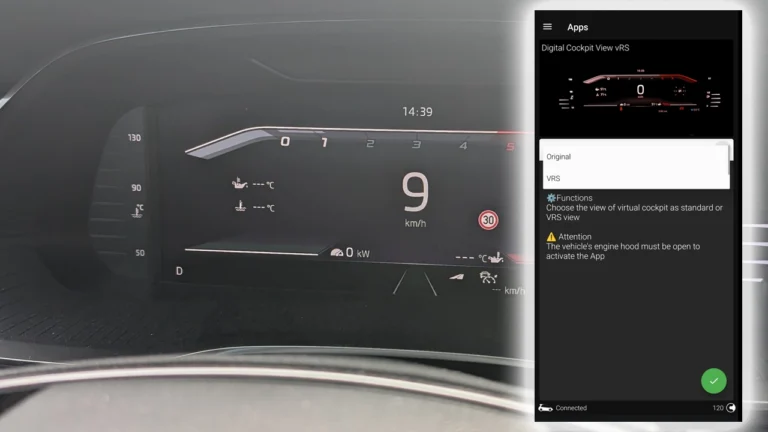
How to enable VRS sport display in the Virtual Cockpit on Skoda Octavia 4 (NX)
How to deactivate the seatbelt warning chime on Skoda Octavia 4 (NX)
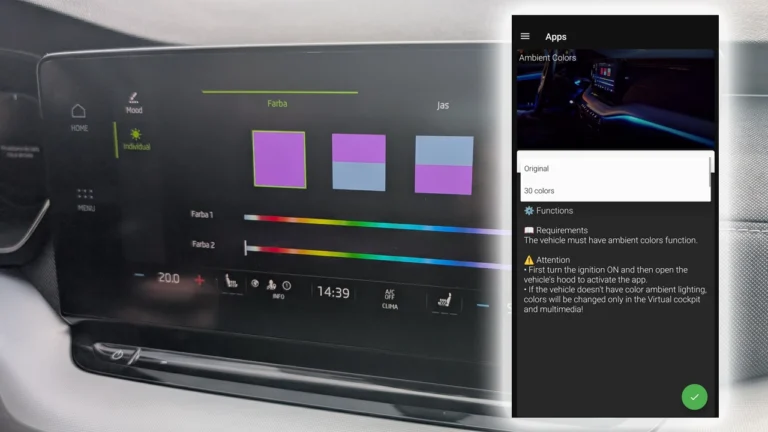
How to activate 30-color ambient lighting on Skoda Octavia 4 (NX)

Activate Cornering Lights (Fog Lights) – Skoda Rapid 2019
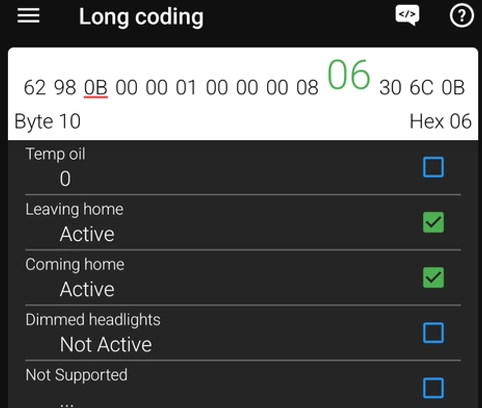
How to Enable Coming Home & Leaving Home Lights (VAG Coding Guide)
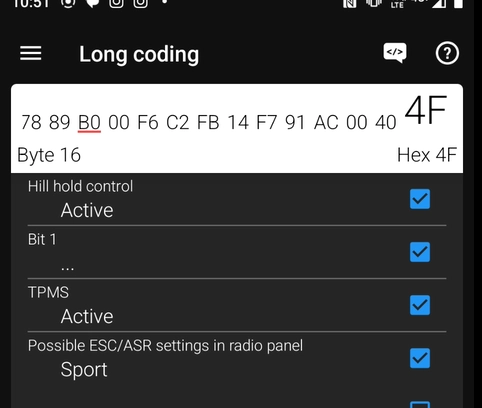
Activate Hill Start Assist – Skoda Rapid 2015
Most popular OBD2 guides




I'm Juraj Lukacko and I work as an auto electrician. On this site I share what I learn from real work on real cars, to help you pick the right tools for diagnostics, programming and tuning and get the job done.
More about me →