
How to Register and Code a New Battery on BMW E60/E61 (Fix Battery Drain & Charging Issues)
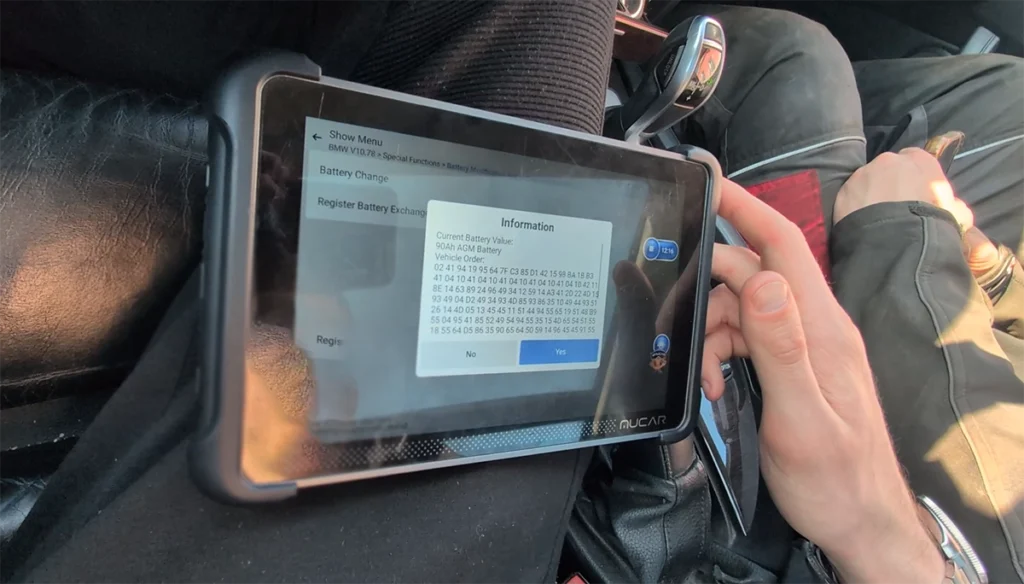

This guide shows how to register and code a new battery on BMW E61 using an OBD2 scanner.
This procedure is required after battery replacement and can fix charging problems or battery drain caused by incorrect battery type or capacity stored in the ECU.
Affiliate Disclosure: iamcarhacker.com is an Amazon and other affiliate programs Associate. As an Amazon Associate, I earn from qualifying purchases. Full Affiliate disclosure.
Used tool in this guide

Video: How to register new battery on BMW
This video shows how to perform battery registration and coding step by step.
Supported vehicles
| Vehicle |
|---|
| 5-series-e6x |
Technical overview
| Item | Details |
|---|---|
| Vehicle | BMW E61 530d |
| Year | 2009 |
| System | CAS / IBS battery management |
| Procedure type | Battery registration + coding |
| Difficulty | Easy |
| Time required | ~10 minutes |
| Prerequisites | Ignition ON, stable battery voltage |
When to do this procedure
- after replacing battery
- when changing battery type (AGM ↔ normal)
- battery drains overnight
- charging not working correctly
Step-by-step procedure
- Connect OBD2 scanner
- Turn ignition ON (engine OFF)
- Go to Special Functions → Battery / Battery Change
- Select Register Battery Exchange
Important step (capacity selection)
You will see options like:
- 80Ah Battery
- 90Ah Battery
- 110Ah Battery
- 80Ah AGM
- 90Ah AGM
👉 You cannot select exact capacity like 96Ah
What to choose
👉 Always select:
- correct battery type (AGM vs normal)
- closest capacity option
Example:
- installed battery: 96Ah AGM
➡️ select: 90Ah AGM
✔️ correct behavior
✔️ ECU will adapt automatically
Continue procedure
- Select:
- same capacity OR
- higher/lower capacity (if changed)
- Confirm battery replacement
- Wait for “successful” message
What this procedure actually does
- resets battery history
- updates charging strategy
- adapts alternator behavior
- syncs IBS system
Real case (why this matters)
In this case:
- vehicle had AGM battery coded
- but physically had normal battery installed
➡️ caused:
- incorrect charging
- battery drain
After installing correct battery and performing registration + coding:
👉 charging behavior returned to normal and battery drain issue was resolved
Common mistakes
- not registering new battery
- wrong battery type selected
- trying to match exact Ah (not needed)
- skipping coding when changing type
Additional Information & Compatibility Notes
Before using or purchasing any diagnostic tool for this procedure, always verify compatibility with your exact vehicle model, year and system configuration. Supported functions may vary depending on software version, hardware revision and regional limitations.
Alternative tools
- XTool A30M
- Youcanic U-CAN II
- OBDeleven
- Best OBD2 scanners with ECU coding
- Best Bi-Directional OBD2 scanners
Related guides & background information
Legal & safety notice
This procedure modifies vehicle system settings through the control module. Incorrect use may cause faults or warning lights. Always ensure the vehicle is secured and follow proper safety procedures.
More procedures like this

Procedures tested with this scanner
 How to Check Diesel Fuel Injectors (VW / Audi / Skoda / Seat) Using OBD2 Scanner
 Steering Angle Sensor Calibration (SAS Reset) – Honda Civic 2017
 How to open rear brake calipers for brake pad replacement in VW Passat B6 (EPB service mode)
 How to adapt remote key fob on VW / Audi / Skoda / Seat (VAG)
Most popular OBD2 guides


Hi, I am Juraj Lukacko. I got frustrated by unhelpful and scammy mechanics, so I decided to learn everything about car diagnostics myself. I test dozens of new car diagnostic tools every month along with learning new strategies to fix and customize cars.
Responses