 By Juraj · Last updated May 2, 2026
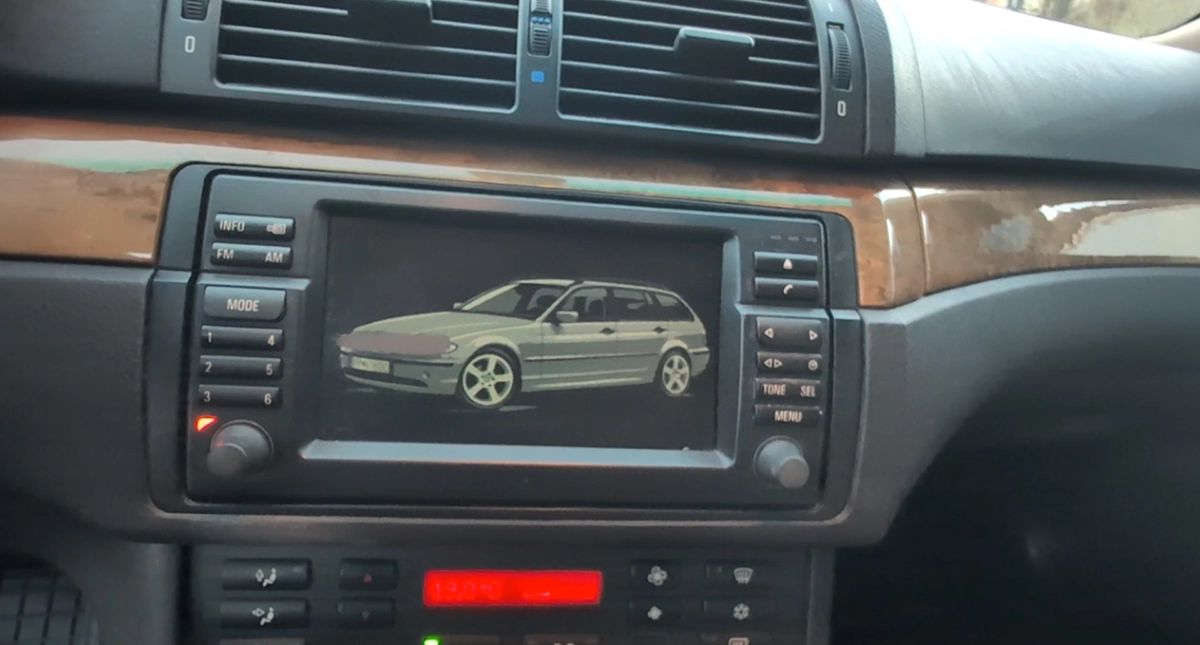
This guide shows how to replace the default BMW logo on your MK4 Professional Navigation with a custom image such as your own car, M-power logo, or any 400×234 pixel design. Based on real-world E46 Touring 2005 project using community-modified firmware.
I earn from qualifying purchases and sometimes get tools for free (full disclosure). It never affects my scoring.
Used tool in this guide
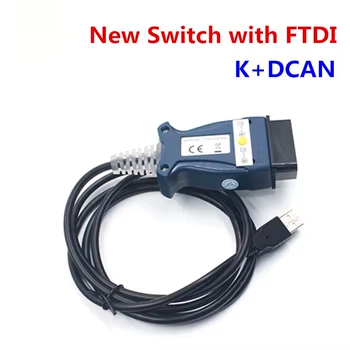
(Optional: I've used it to set radio in update state and confirm it is MK4 navi but you don't need it for this)
How to verify you have MK4
Supported models: E46 / E39 / E38 / E53 / E83 / E85 / E86 with MK4 navi
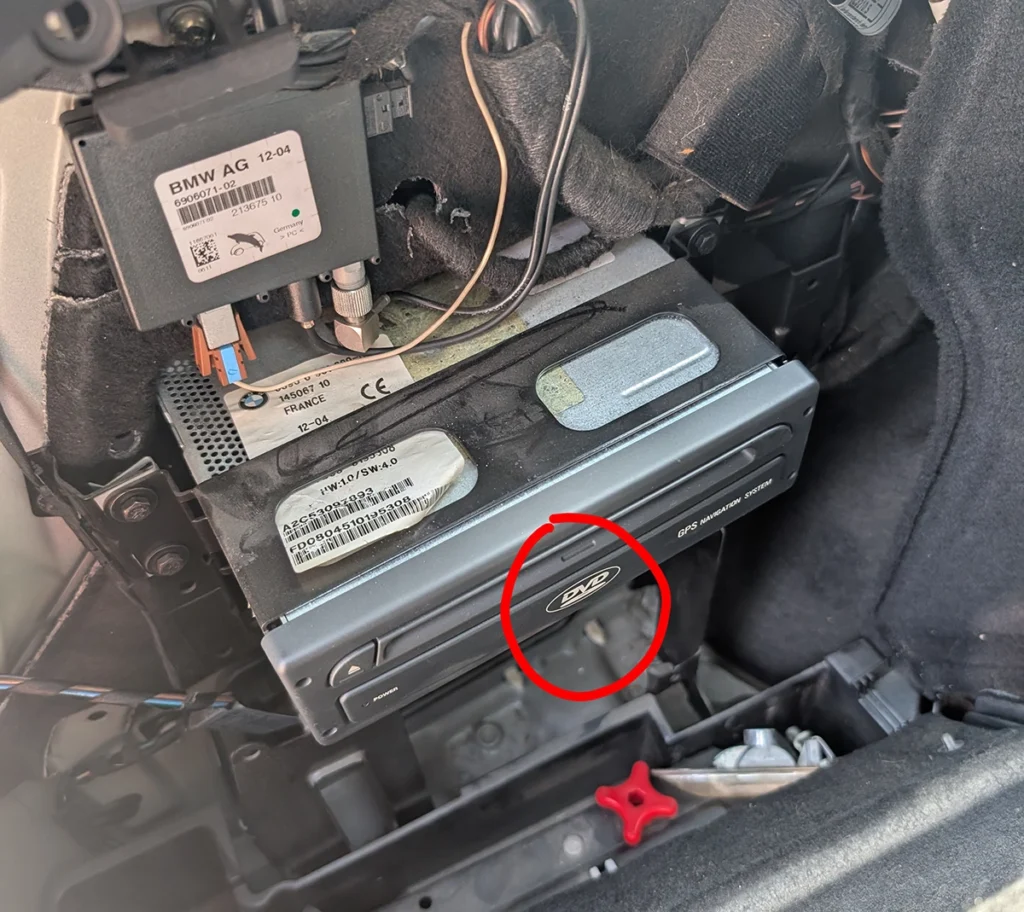
Before starting, confirm you have MK4 by checking:
- Location: Nav computer in trunk (not dashboard)
- Front panel: "DVD" logo visible
- Eject button: Round shape
- Part number: Starts with 65 and has 69XX XXX format
- Software: Settings menu shows MK4 version (SW 1-X/XX to 4-X/XX)
If you have MK2 (CD) or MK3 (CD) — this procedure will not work.
If you have iDrive (E60, E65, E90+) — this procedure will not work.
If you have MK3 (looks same but doesn't have DVD logo -> you can just swap for MK4 plug and play)
Download everything HERE:
Technical overview
| Vehicle | BMW E46 Touring |
|---|---|
| Year | 2005 |
| System | MK4 Navigation (DVD-based) |
| Procedure type | Firmware modification/update + custom splash |
| Difficulty | Advanced |
| Time required | ~60 minutes |
| Prerequisites | Windows laptop with CD slot or external CD machine, clean DVD-R for burning |
Step-by-step procedure
Download MK4 v32 firmware
The easiest path — just update to the latest official v32 firmware without custom splash modification.
Download:
- MK4 v32 firmware ISO — [download link]
- ImgBurn (free DVD burning software) — imgburn.com
If you only want to update firmware → skip to Step 6 (Burn to DVD).
If you want a custom splash image on your dashboard → continue with Optional Steps 2-5.
Optional Steps - Custom Splash Image
Follow these steps only if you want to replace the default BMW logo with your own image.
Download required software
| Software | Purpose | Link |
|---|---|---|
| UltraISO | Open and edit ISO files | ezbsystems.com |
| NavTweak 2.6 | Edit MK4 navboot file | [download link] |
| GTK+ 2.12.9 Runtime | Required for NavTweak to run | sourceforge.net |
Prepare your custom splash image
Your image must meet these exact specifications:
| Parameter | Value |
|---|---|
| Dimensions | 400 × 234 pixels |
| Format | GIF (indexed color) |
| Color depth | 16 colors (for smallest file size) |
| File size | Under 8,000 bytes (critical!) |
| Animation | Single frame only |
Easiest method — use ChatGPT or Claude:
Instead of learning Photoshop or Photopea, just use AI to prepare your image. Upload your source photo and use this prompt:
Resize this image to exactly 400x234 pixels, convert to indexed GIF with
16 colors maximum, no dither, no transparency. The final file must be
under 8000 bytes. Return the GIF file for download.
Works with: ChatGPT (with image tools), Claude, or any AI image tool.
Locate navboot file in the ISO
- Open UltraISO (run as administrator)
- File → Open → select
MK4_v32.iso - Navigate to this exact path inside the ISO:
V_2 / RR / 0101 / BMWC01S / app_sw / navboot- Right-click
navboot→ Extract to... - Save to a working folder, e.g.
C:\BMW_NAV\original\navboot
![UltraISO navboot location screenshot]
navboot file on your local disk.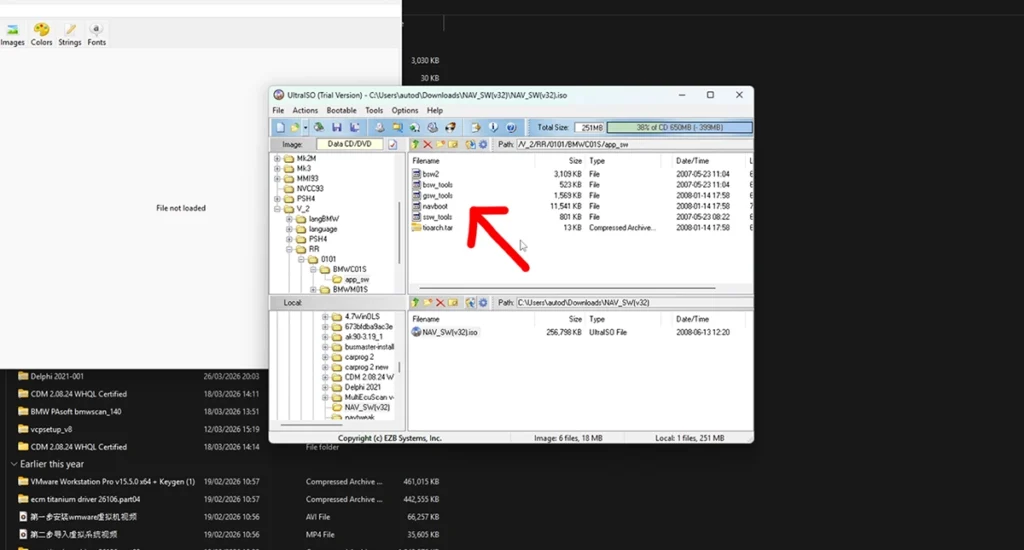
Replace splash image in navboot
- Launch NavTweak (with GTK runtime installed)
- File → Open → select your extracted
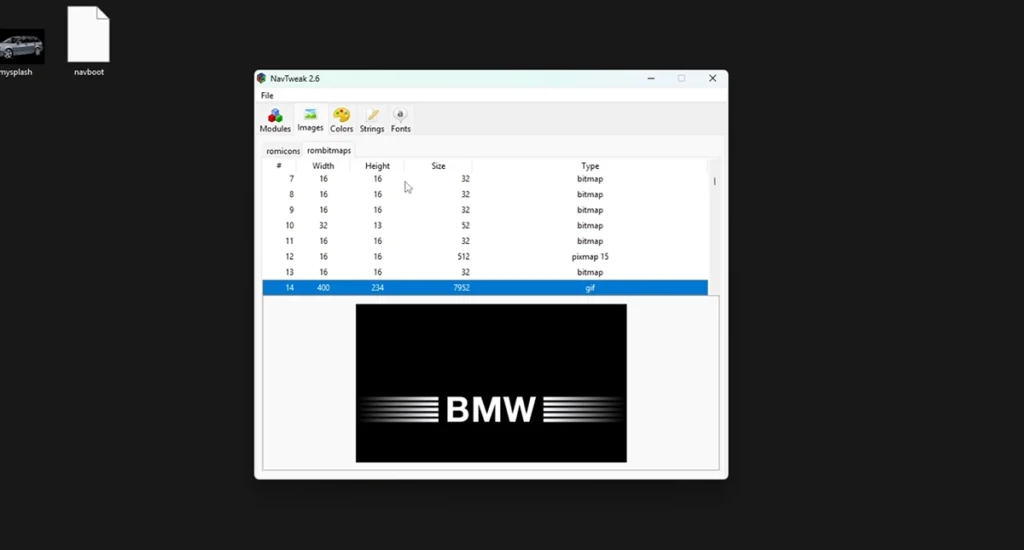
navbootfile - Click the Images tab
- Expand rombitmaps section
- Scroll to line 14 — this is the main BMW splash image (400×234 GIF)
- Right-click line 14 → Replace
- Select your custom GIF prepared in Step 2
- Verify the preview shows your new image
![NavTweak line 14 replacement screenshot]
Only replace line 14. Other entries control different system graphics. If you want you can replace those as well for more customizations.
Save modified navboot to ISO
- In NavTweak: File → Save the modified navboot (overwrite original location or save as new)
- Switch back to UltraISO with the v32 ISO still open
- Navigate to
V_2 / RR / 0101 / BMWC01S / app_sw / - Drag and drop your modified
navbootinto the right panel - Confirm Overwrite? → Yes
- File → Save As →
MK4_v32_custom.iso - Choose ISO Image File format when saving
⚠️ Extra Step If You Already Have v32 Installed
If your navigation is already running v32 firmware (check in Settings), it will reject the same-version update with a "Software is up to date" message.
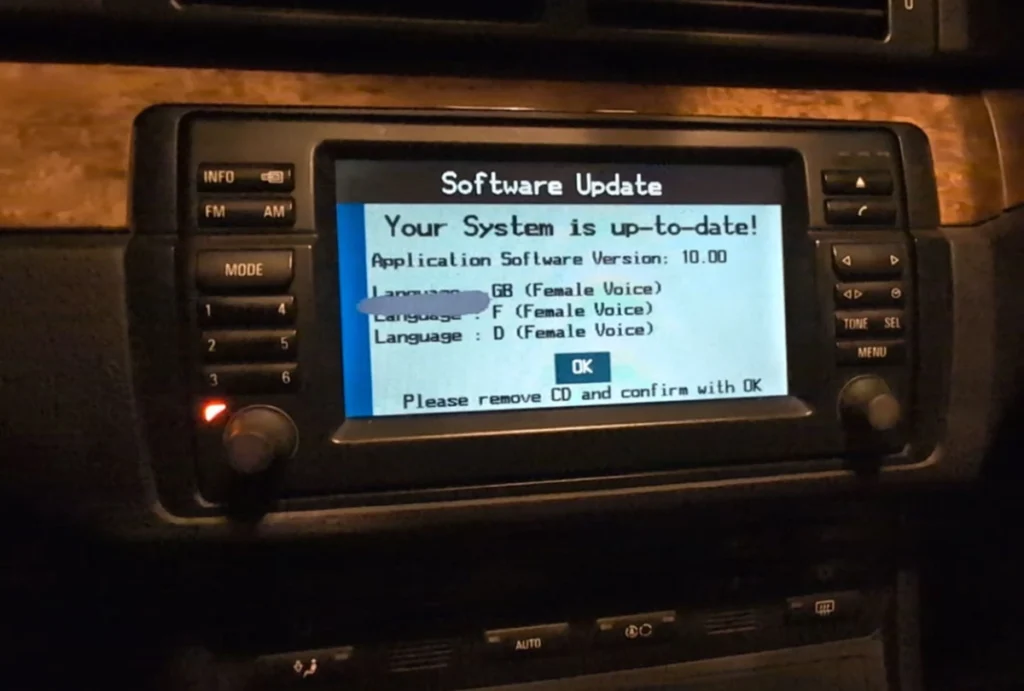
Option A: Downgrade, then upgrade with custom splash
You'll need to downgrade to an older version first, then flash your custom v32 on top. You can find older versions here: http://www.e38.org/nav/
Process:
- Burn older version (v29 recommended) → flash it
- After downgrade completes → burn your custom v32 ISO → flash
- Nav accepts upgrade from v29 → v32 with your custom splash
Option B - Community custom V32
There is a custom v32 ISO (in the download above) that bypasses the same-version check completely. No downgrade required — flash your custom splash directly over existing v32.
Burn custom ISO to DVD
DVD media choice is critical - MK4 is picky about which discs it reads.
Required DVD specifications:
| Parameter | Value |
|---|---|
| Type | DVD-R only (NOT DVD+R!) |
| Capacity | 4.7 GB (single layer) |
| Brand | Verbatim AZO (highest compatibility) |
| Speed rating | 16x max (we burn at 4x) |
❌ DO NOT USE:
- DVD+R discs (rejected by MK4)
- Dual layer discs
- Rewriteable (DVD-RW) discs
- No-name brand discs
- Re-used discs
Burning process:
- Insert fresh Verbatim DVD-R into PC burner
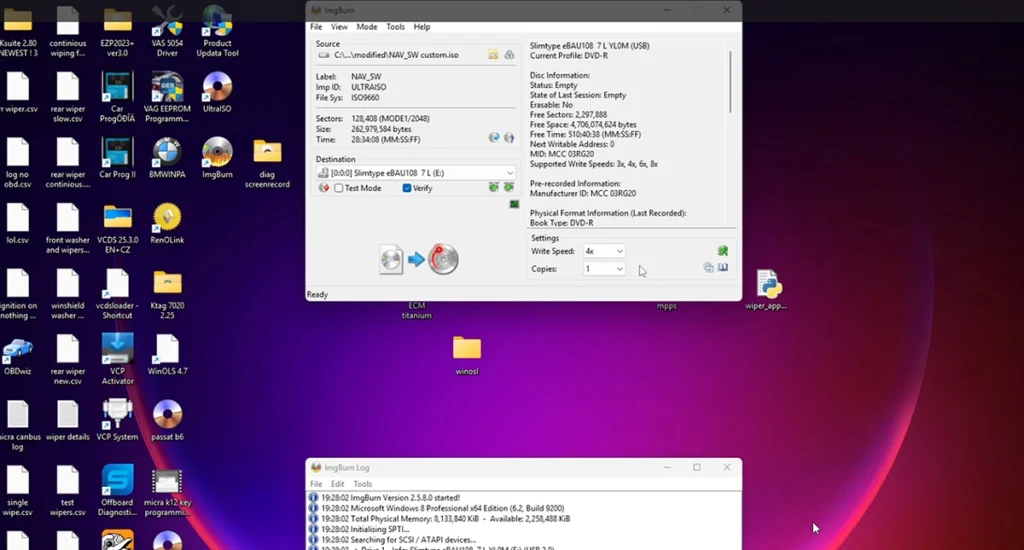
- Open ImgBurn
- Click "Write image file to disc"
- Source: your custom ISO file
- Configure settings:
- Write Speed: 4x (slower = more reliable)
- Verify: ON ✅
- Copies: 1
- Click Burn
- Wait 8-10 minutes for burn + verify
Flash DVD in the vehicle
Critical: The DVD must go in the navigation computer in the trunk NOT the CD slot in the radio!
Vehicle location of nav computer:
- E46 Sedan/Coupe/Touring: Right side of trunk behind panel
- E39: Left side of trunk
- E38: Trunk, right side
- E53 X5: Rear cargo area, right side
- E83 X3: Rear cargo area
Vehicle preparation: power is critical:
Most guides say "ignition ON, doors open". Here's what actually works and keeps your nav safe:
Whether you choose ignition ON or engine running — just keep power stable for the entire flash duration.
Flashing the DVD:
- Open trunk, locate nav computer
- Press eject button → remove existing map DVD (if any)
- Insert your custom firmware DVD
- Start engine (or ignition ON if battery is healthy)
- Turn on ignition if not already
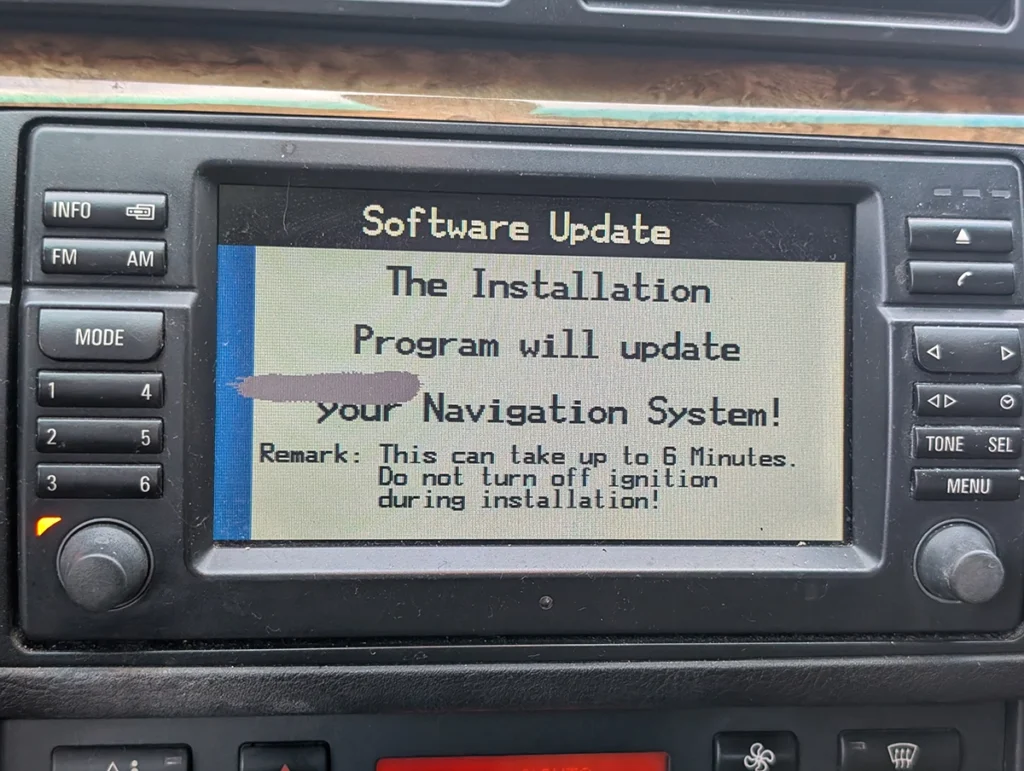
- Display shows: "Software Update — will update your Navigation System!"
- Screen warns: "Up to 6 minutes. Do not turn off ignition during installation!"
- Confirm update
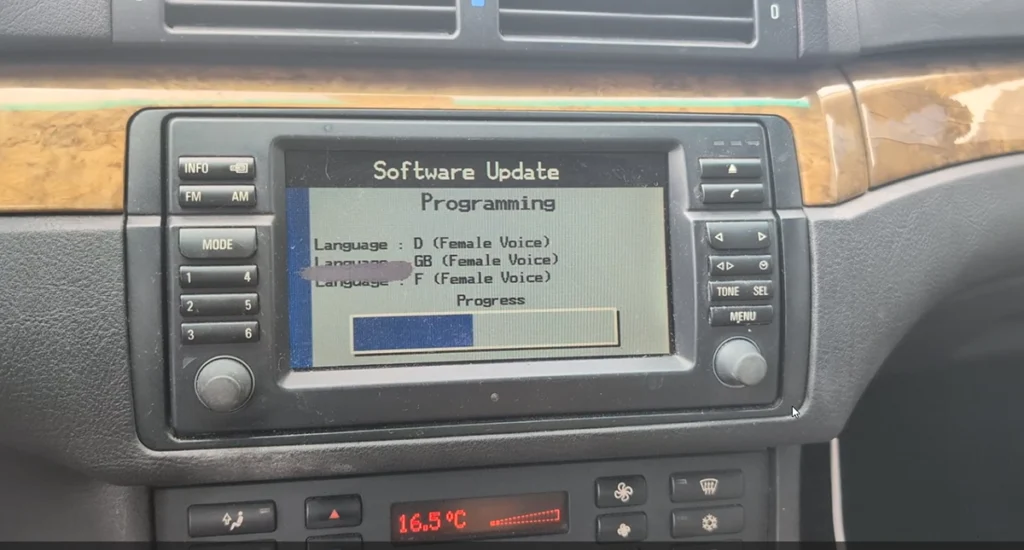
- Wait untill it finish - do not touch anything
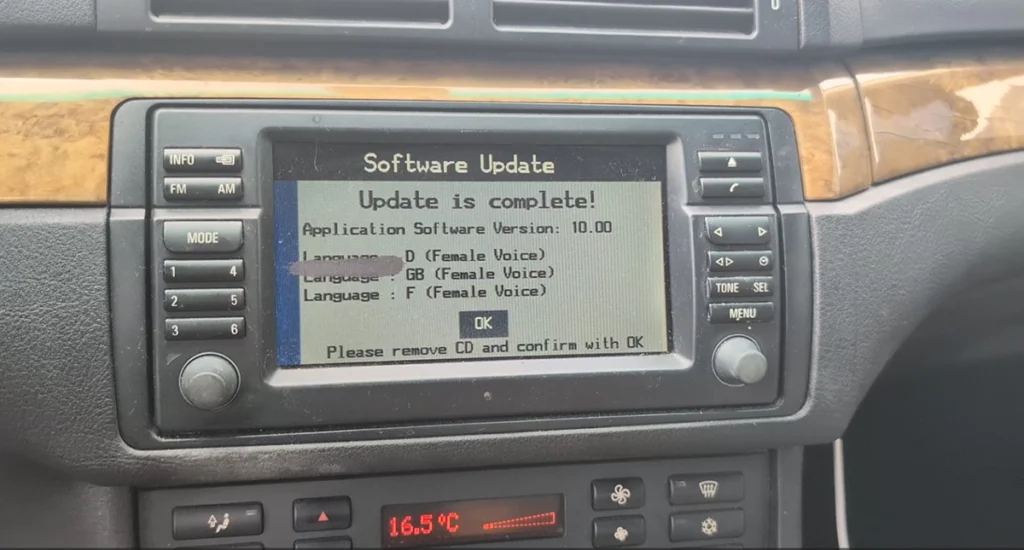
- DVD ejects automatically when complete
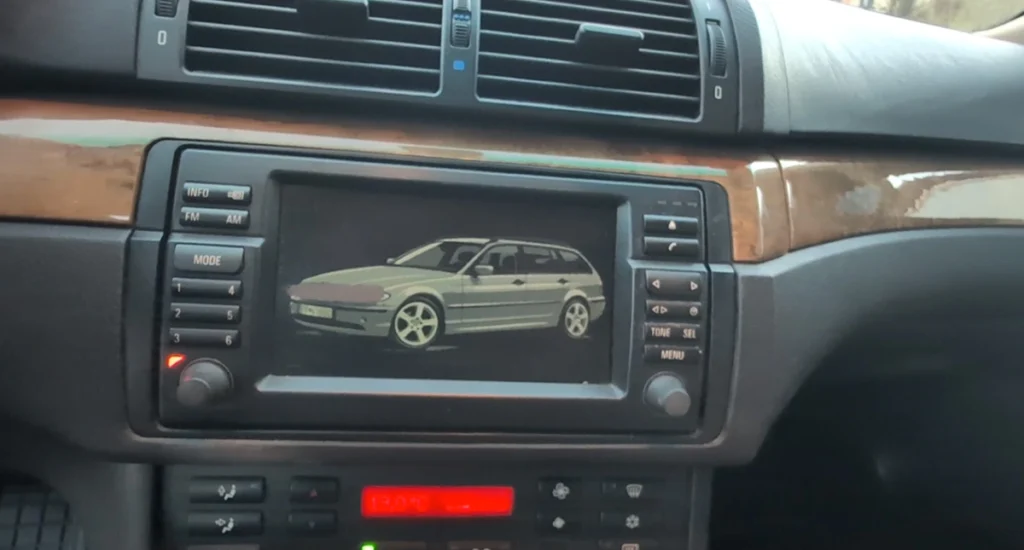
- Nav reboots with your firmware (and custom splash if applied!)
- ❌ Turn off engine or ignition
- ❌ Open/close hood
- ❌ Press buttons on dashboard
- ❌ Eject DVD manually
- ❌ Use electrical accessories (A/C, wipers, etc.)
Legal & safety notice
More procedures like this
BMW / MINI NAVIGATION MAP UPDATE PROCEDURE (step-by-step)
BMW E46 318d (2005, 85kW) DTC Delete: Removing P0401 EGR and Lambda Code 4298 From the ECU Firmware
How to Add a Key / Perform AKL on BMW E46
BMW 3-series E46 (2005) – Oil Service Reset (With & Without OBD2 Scanner)
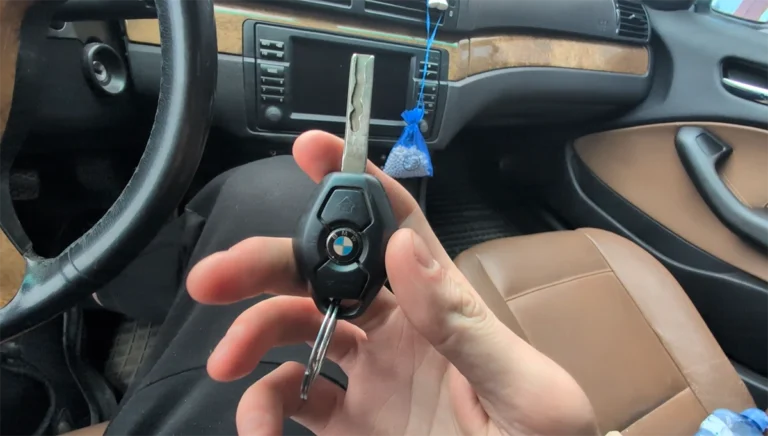
How to do BMW E46 Remote Programming (EWS Key Sync)
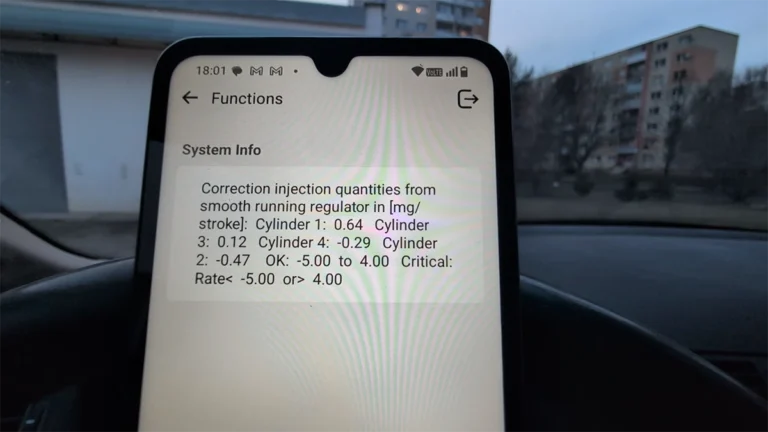
How to check diesel fuel injectors on BMW E46 using OBD2 scanner
Most popular OBD2 guides


I'm Juraj Lukacko and I work as an auto electrician. On this site I share what I learn from real work on real cars, to help you pick the right tools for diagnostics, programming and tuning and get the job done.
More about me →