
BMW / MINI NAVIGATION MAP UPDATE PROCEDURE (step-by-step)
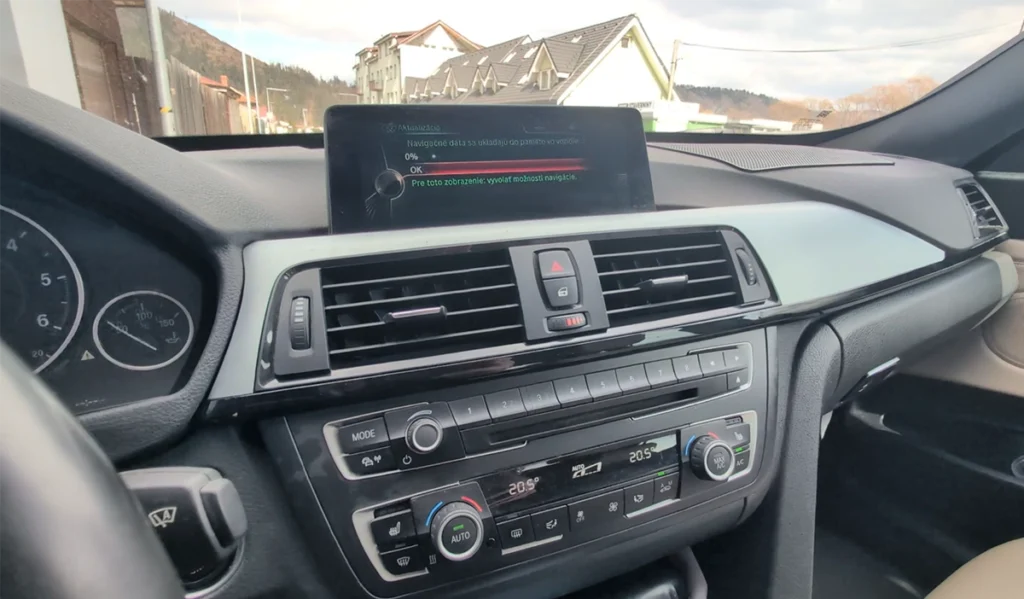

This guide shows how to update BMW and MINI navigation maps using a USB drive and FSC activation code.
It works for most iDrive systems including CIC, NBT and NBT EVO.
Affiliate Disclosure: iamcarhacker.com is an Amazon and other affiliate programs Associate. As an Amazon Associate, I earn from qualifying purchases. Full Affiliate disclosure.
Used tool in this guide
- OEM map downloader software
- USB flash drive (32GB / 64GB FAT32)
Video: How to update BMW & Mini navigation maps
This video shows how to update BMW navigation maps step-by-step using USB and FSC code.
Supported vehicles
BMW – 1 Series, 2 Series, 3 Series, 4 Series, 5 Series, 6 Series, 7 Series
BMW – X1, X2, X3, X4, X5, X6, X7
BMW – i3, i8
MINI – all models with factory navigation  Systems:
CIC (PREMIUM)
NBT (NEXT)
NBT EVO (ID4 / ID5 / ID6 – EVO maps)
ENTRYNAV / ROUTE / WAY / MOVE
Technical overview
| Item | Details |
|---|---|
| Vehicle | BMW / MINI |
| Year | |
| System | CIC / NBT / EVO / ENTRYNAV |
| Procedure type | Software update |
| Difficulty | Medium |
| Time required | ~30–60 minutes |
| Prerequisites | USB drive + FSC code + correct map |
Step-by-step procedure
Step 1: Check current map version
Go to Navigation → Options → Navigation system version
Example: Road Map Europe EVO
Step 2: Download correct map
Download MAPS from this website
Find the same map type (EVO / NEXT / PREMIUM)
Make sure region matches (Europe, USA, etc.)
Step 3: Verify VIN and get FSC code
Enter VIN → system will confirm compatibility
Purchase correct FSC activation code
Step 4: Download maps
After purchase you receive:
- download link
- FSC code
- downloader tool
Step 5: Start map download
Open downloader
Enter code
Select download location
Step 6: Copy to USB
After download:
- copy files to USB
- use FAT32
- do NOT use external HDD
Step 7: Plug USB into car
Use glovebox USB port (preferred)
Alternative: center console
Step 8: Start update
System detects update automatically
Enter FSC code when prompted
Step 9: Wait for installation
Leave engine ON
Update takes ~20–60 minutes
Step 10: Finish
At 100% you will see success message
Additional Information & Compatibility Notes
Before using or purchasing any diagnostic tool for this procedure, always verify compatibility with your exact vehicle model, year and system configuration. Supported functions may vary depending on software version, hardware revision and regional limitations.
Related guides & background information
Legal & safety notice
This procedure modifies vehicle system settings through the control module. Incorrect use may cause faults or warning lights. Always ensure the vehicle is secured and follow proper safety procedures.
Most popular OBD2 guides


Hi, I am Juraj Lukacko. I got frustrated by unhelpful and scammy mechanics, so I decided to learn everything about car diagnostics myself. I test dozens of new car diagnostic tools every month along with learning new strategies to fix and customize cars.
Responses