Published: April 1, 2026 · Last updated: April 27, 2026
Car Scanner ELM OBD2 is one of the most powerful free OBD2 apps you can use with a Bluetooth adapter.
In this guide, you’ll learn:
- how to set it up correctly
- how to scan fault codes (including full system scan)
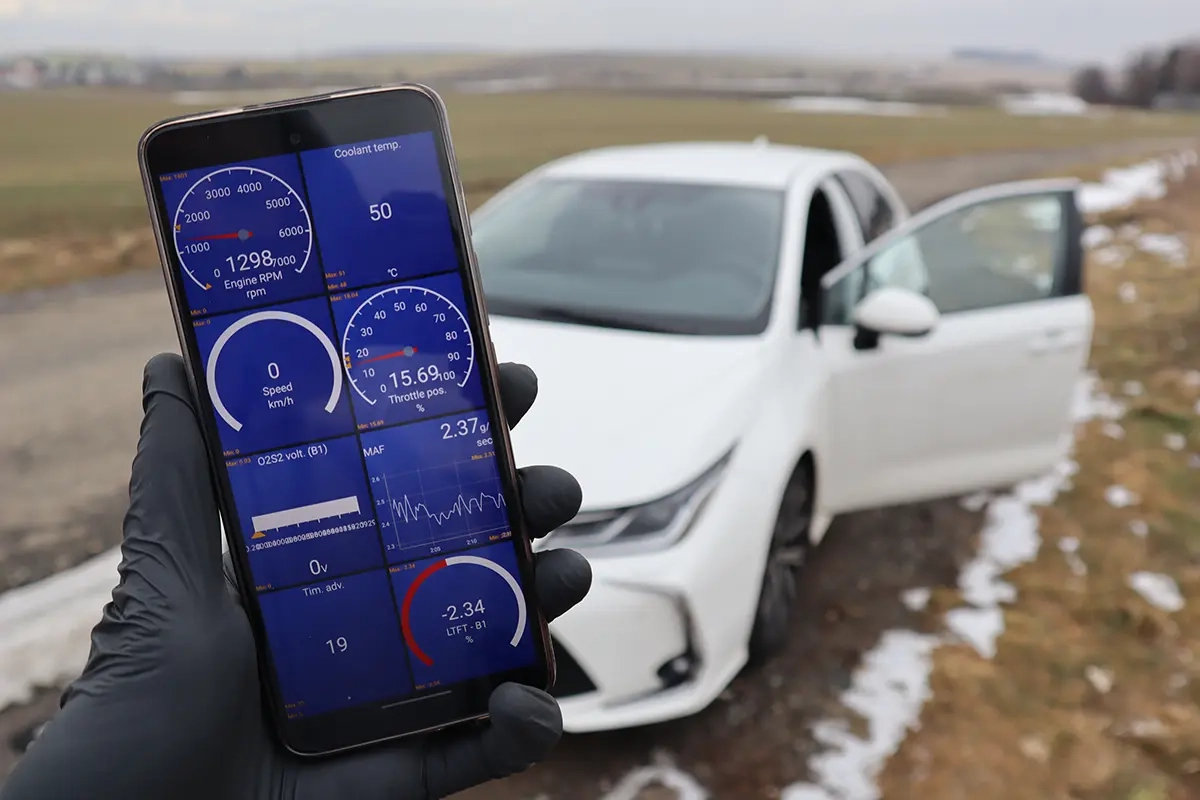
- how to use live data and dashboards
- how to avoid common mistakes
I earn from qualifying purchases and sometimes get tools for free (full disclosure). It never affects my scoring.
Full video walktrough of Car scanner app
This content is for members only.
Initial setup (first launch)
Download APP on official website.
When you install the app, go through these settings:
Basic configuration
- Select language
- Choose theme (light/dark)
- Set units (metric / imperial)
👉 Important:
- Temperature → °C / °F
- Pressure → bar / psi
- Fuel → liters / gallons
Connection profile (MOST IMPORTANT STEP)
This is where most people mess up.
Car Scanner works with:
- basic OBD2 (engine only)
- extended profiles (ABS, airbag, etc.)
Why it matters
👉 Correct profile = access to ALL modules
👉 Wrong profile = engine only
How to choose correct profile
- Go to Connection profile
- Look for your:
- car brand
- engine type
- platform (e.g. VAG PQ25, MQB, etc.)
If you’re unsure:
- screenshot available profiles
- identify closest match to your car / ask chatGPT for help choosing right profile
Result
If profile is correct, you can:
- scan ABS
- scan airbag
- scan body modules
- not just engine
Connecting to your car
TIP: Car Scanner APP works with Mucar BT200 Max – which comes with full system access, bi-directional tests and service resets (without update fee). You can make powerful combo with own software + car scannr app.

What you need
- ELM327 adapter (Bluetooth / WiFi)
- plugged into OBD2 port
Steps
- Turn ignition ON
- Plug adapter into OBD port
- Open app
- Select:
- Bluetooth device
- your adapter (e.g. OBDLink MX+)
- Connect
Full system scan (hidden feature)
Most people think apps like this can only scan engine.
That’s not true.
How to scan ALL modules
- Go to:
→ Diagnostic Trouble Codes - You’ll see list of modules (can be 100+)
- Instead of scanning all:
- deselect everything
- manually select modules in your car
Example:
- Engine
- ABS
- Airbag
- Steering
- Instrument cluster
- Comfort module
👉 This makes scan:
- MUCH faster
- more reliable
What to expect
- App will scan each module
- Lights may flash → normal
- Results:
- fault codes per module
Important insight
With correct profile:
👉 this app can match results of expensive scanners
Reading & clearing fault codes
Reading codes
- shows code + module
- example:
- engine
- climate
- gateway
Clearing codes
- Turn ignition ON (engine OFF)
- Press Clear codes
- Start engine again
👉 Check engine light should disappear
Live data (real-time engine data)
One of the strongest features of this app.
Two modes
1. Separate graphs
- each value = separate graph
- good for detailed analysis
2. Combined graph
- multiple values in one graph
- best for:
- comparing sensors
- diagnosing issues
Example use cases
- O2 sensors → catalytic converter test
- RPM vs fuel trims
- coolant temperature
Pro tip
Too many values = slow data refresh
👉 Select only what you need
Advanced trick (important)
If values are hard to compare:
- use RPM ×1000 scaling
👉 makes graph easier to read
Dashboard (custom gauges)
You can build your own dashboard.
Features:
- gauges
- charts
- text values
Customization options:
- colors
- thresholds
- warnings (sound alerts)
- layout
Example:
- RPM turns red above 2000
- sound alert triggered
All sensors (raw data)
This page shows:
- ALL available parameters
- text format
👉 downside:
- slower updates
- too much data
Use only if needed.
Freeze frame data (when fault happens)
When fault code is stored, app saves:
- RPM
- speed
- load
- fuel trims
👉 snapshot of engine at moment of failure
Emissions & readiness monitors
Important for diagnostics and inspections.
What they show:
- system status (OK / not complete)
Key concept
After clearing codes:
👉 all monitors reset
You must drive car:
- ECU runs tests again
- status becomes “complete”
Example
Catalytic converter monitor:
- needs longer drive
- may stay “not complete”
Data logging (very powerful)
You can record data while driving.
Features:
- automatic logging
- export data
- GPS tracking
Use cases:
- diagnose intermittent issues
- compare before/after repairs
- analyze performance
ECU identification
Shows:
- ECU version
- calibration ID
👉 useful when:
- replacing ECU
- checking compatibility
Acceleration tests
Built-in tests:
- 0–100 km/h
- braking time
- custom tests
Settings worth checking
Inside settings you can configure:
- fuel type
- engine size
- fuel price
- adapter connection
- auto-connect
Adapter setup (important)
Choose correct:
- Bluetooth
- WiFi
- BLE (iPhone)
👉 wrong setting = connection issues
Common mistakes (avoid these)
- ❌ wrong connection profile → only engine scan
- ❌ selecting too many live data values → slow updates
- ❌ scanning all modules → very slow
- ❌ cheap unstable adapter → connection drops
Is Car Scanner actually enough?
For most users:
👉 YES
You can:
- read/clear codes
- scan multiple modules
- analyze live data
Most popular OBD2 guides
Hi, I am Juraj Lukacko. I got frustrated by unhelpful and scammy mechanics, so I decided to learn everything about car diagnostics myself. I test dozens of new car diagnostic tools every month along with learning new strategies to fix and customize cars.