Full system scanners allow you to go far beyond basic engine diagnostics. Instead of reading just engine fault codes, you can access every control module in your car, run full system scans, check live data, and perform advanced tests.
But every car and scanner behaves differently – so understanding the basics is critical before you start.
This content is for members only.
Full System Scan (Automatic Scan)
The most important feature is the full system scan.
This scan goes through all control modules in the car and checks:
- which modules are present
- which modules respond
- which modules have fault codes
Key things to know:
- Always turn ignition ON before scanning
- Some modules won’t communicate with ignition OFF
- Scan time depends on the car (older cars can be slower)
Module Status Explained
After the scan, you’ll see different module statuses:
| Status | Meaning |
|---|---|
| 🟢 Green | Module is present and no faults |
| 🟠 Orange | Module has fault codes |
| ⚪ Gray | Module not installed in the car |
👉 Example:
Manual transmission cars won’t have a transmission control module.
Topology vs List View
Depending on your scanner, you’ll see:
Topology (advanced scanners)
- visual map of modules
- shows communication lines
- helps diagnose CAN bus issues
List view (basic scanners)
- simple list of modules
- still works fine for most diagnostics
👉 Topology is especially useful when:
- multiple modules fail communication
- you suspect wiring/CAN issues
Creating a Health Report
Before clearing any fault codes, always create a diagnostic report.
Most scanners allow you to:
- save full system scan results
- add vehicle details (VIN, mileage)
- export or email the report
👉 This is important because:
- you keep original fault history
- you can compare before/after repairs
- it makes your work look professional
Accessing Individual Modules
After scanning, you can enter any control module.
Each module typically includes:
Basic functions:
- Read fault codes
- Clear fault codes
- View ECU information
- Live data
Advanced functions:
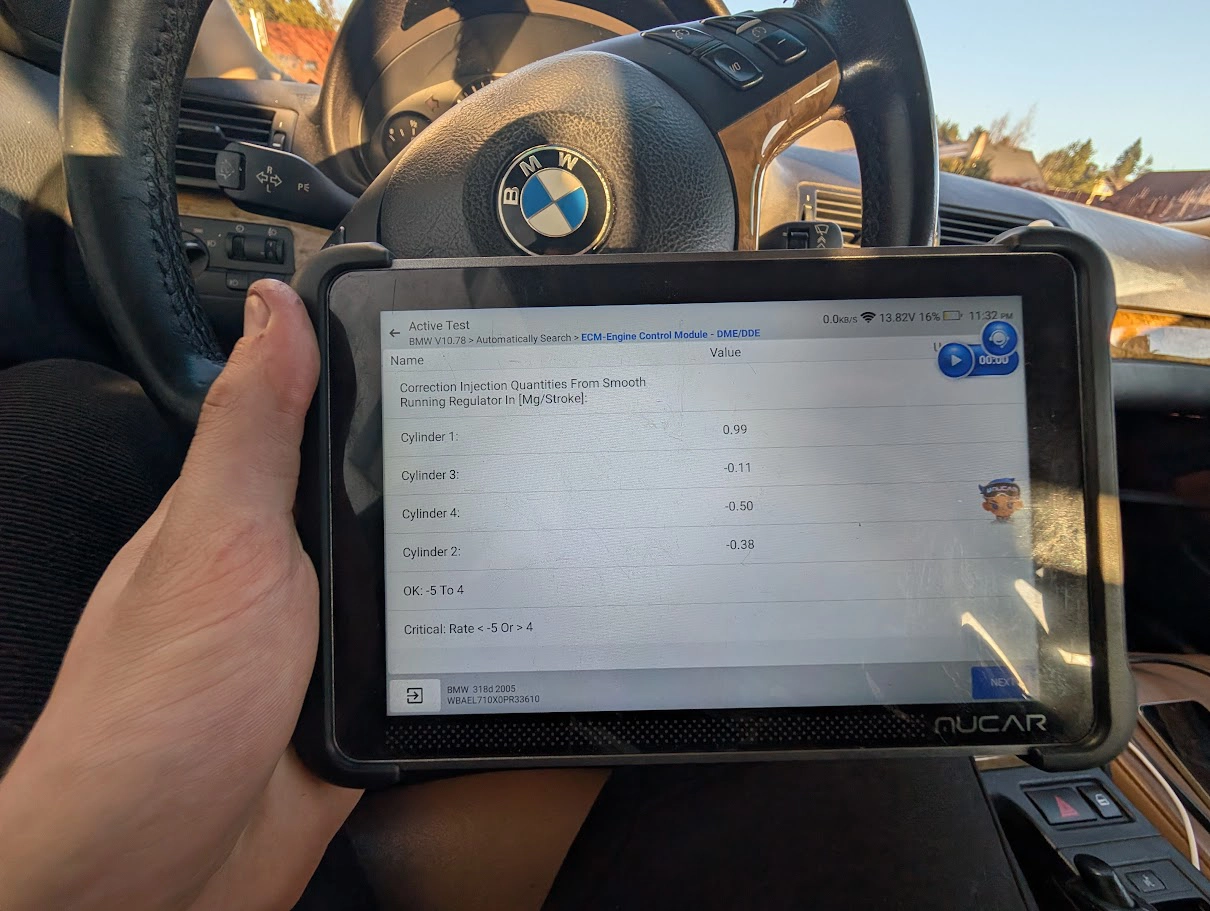
- Bi-directional tests (actuator tests)
- Special functions (service resets)
Live Data in Different Modules
Every module has its own live data.
Examples:
- Engine → sensors, fuel data
- Power steering → steering angle, torque
- ABS → wheel speeds
👉 Important:
- New cars can have hundreds of parameters
- Data is often split into categories
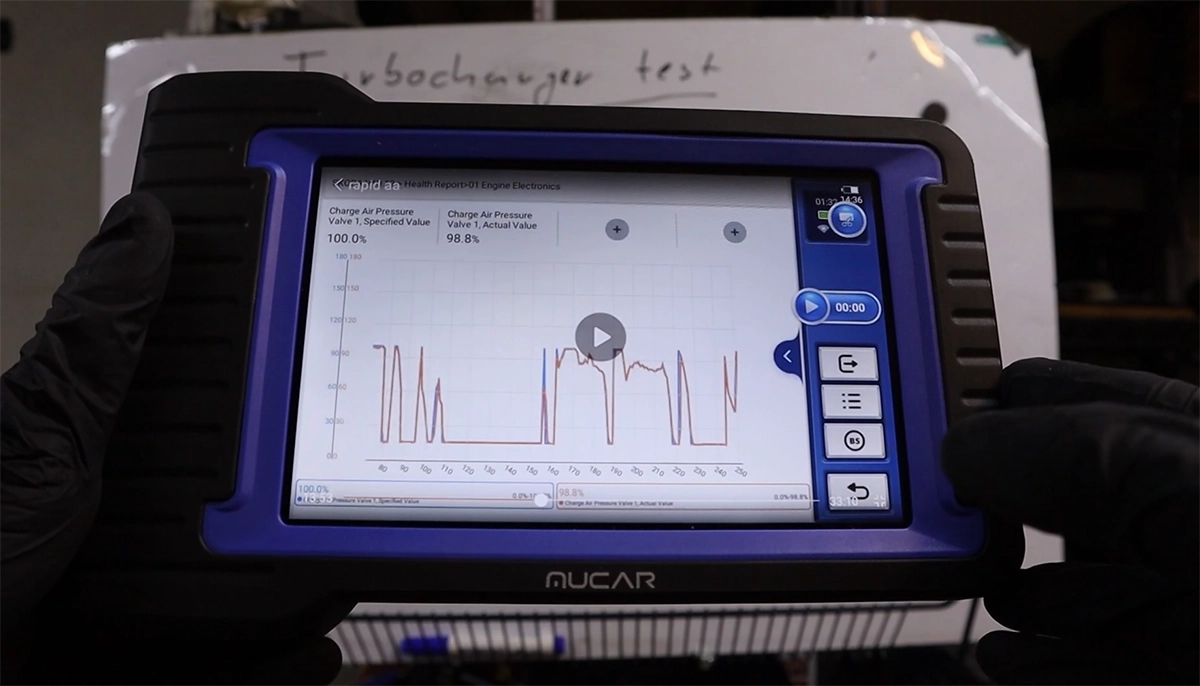
Recording Live Data
Most scanners allow recording live data:
- select parameters
- start recording
- save session
👉 You can later:
- replay data
- view graphs
- analyze faults more precisely
Bi-Directional Tests (Actuator Tests)
In some modules, you can actively control components:
Examples:
- turn cooling fan ON/OFF
- activate fuel pump
- test lights
👉 Not all modules support this
👉 Not all scanners support every function
Important: Every Scanner Is Different
This is critical to understand
- different scanners = different features
- different cars = different menus
- same function may work on one scanner but fail on another
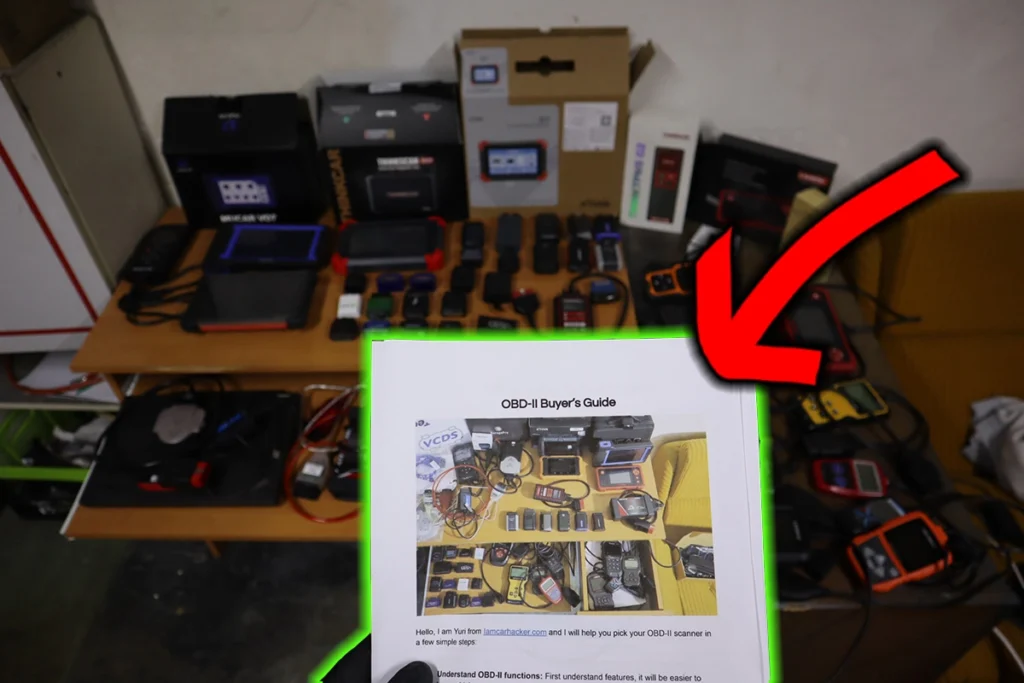
👉 That’s why professionals often use multiple tools.
Related Diagnostic Procedures
Below you’ll find real diagnostic procedures using full system scanners. These step-by-step guides show how to scan specific systems, read fault codes, and work with live data in real situations.
Final Tip
Full system diagnostics is not complicated — but it requires practice.
Start simple:
- Run full scan
- Check fault codes
- explore modules
- monitor live data
👉 With time, you’ll naturally move into advanced diagnostics.
Hi, I am Juraj Lukacko. I got frustrated by unhelpful and scammy mechanics, so I decided to learn everything about car diagnostics myself. I test dozens of new car diagnostic tools every month along with learning new strategies to fix and customize cars.